
Multilingual Support & Language Switching
EpoCanvas Docs ships complete content-level multilingual support: the UI text (navigation bar, sidebar, search hints, and so on) and the body text of every document are each available in 10 independent languages. After selecting a language from the top-right corner of the page, the reader is taken to the same article in that language, with the body text and the UI switching together.
Supported Languages
The site currently offers 10 languages, with Simplified Chinese as the default:
| Language | Language name | URL prefix | UI abbreviation |
|---|---|---|---|
| 简体中文 | Simplified Chinese (default) | none | ZH |
| 繁體中文 | Traditional Chinese | /zh-tw/ | TW |
| English | English | /en/ | EN |
| 日本語 | Japanese | /ja/ | JA |
| 한국어 | Korean | /ko/ | KO |
| Español | Spanish | /es/ | ES |
| Français | French | /fr/ | FR |
| Deutsch | German | /de/ | DE |
| Русский | Russian | /ru/ | RU |
| Português | Portuguese | /pt/ | PT |
The language list is defined in SUPPORTED_LANGUAGES in src/utils/i18n.ts, and the language routes are registered in the locales configuration in astro.config.mjs. Keep the two in sync.
How to Switch Languages
- Find the language button on the right side of the top navigation bar (it shows the abbreviation of the current language, such as
ZH); - Click the button and a dropdown menu lists all 10 languages;
- Click the target language (for example
Englishor日本語); - The browser navigates to the current article in that language; the navigation, sidebar, table of contents, and body text all switch to the target language together.
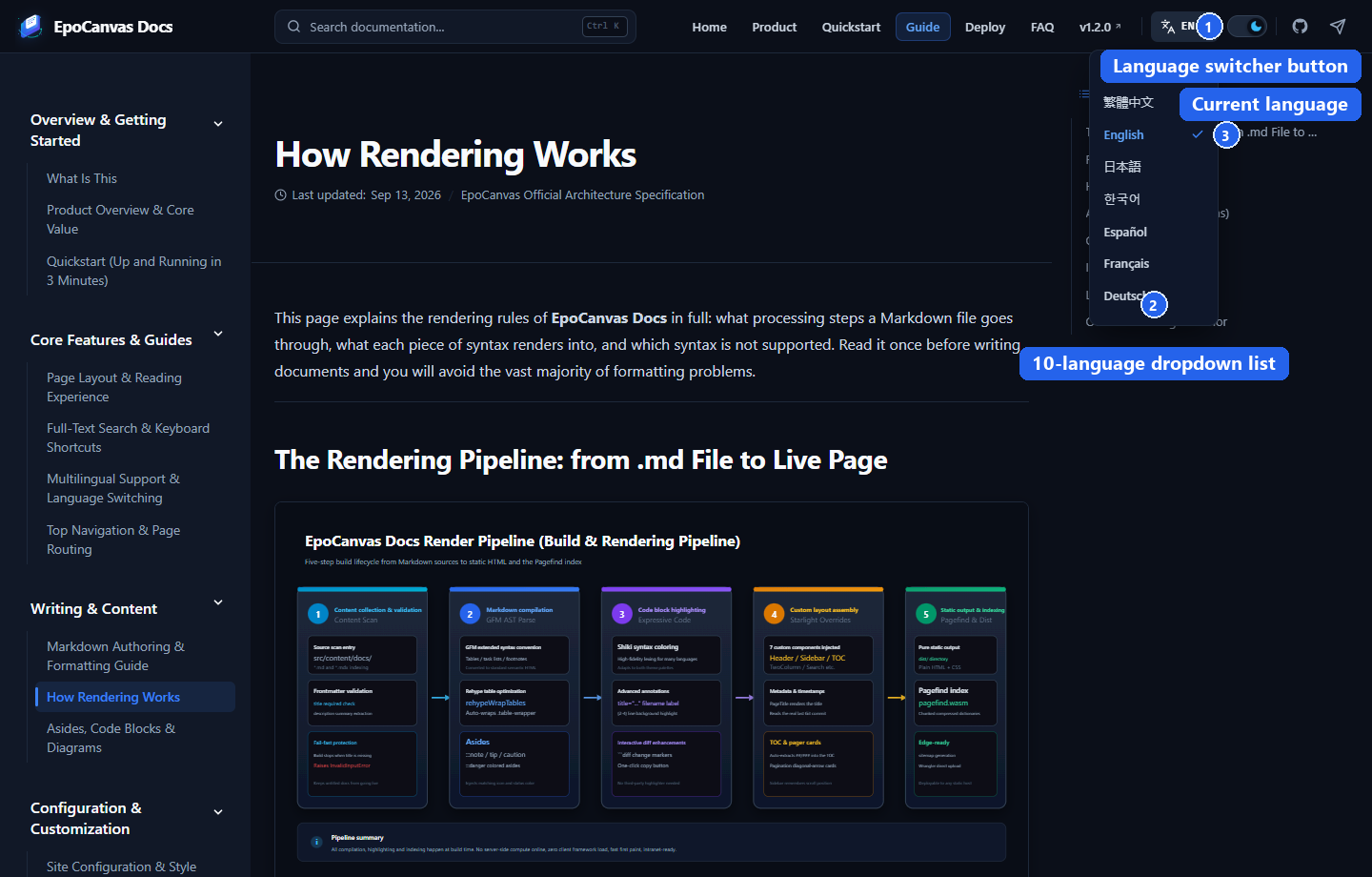
Figure: what the page looks like after clicking the language button on the “Multilingual Support & Language Switching” page. (1) The language switcher button on the right of the header; (2) the expanded dropdown listing all 10 languages (the list scrolls); (3) the currently active language (marked with a check).
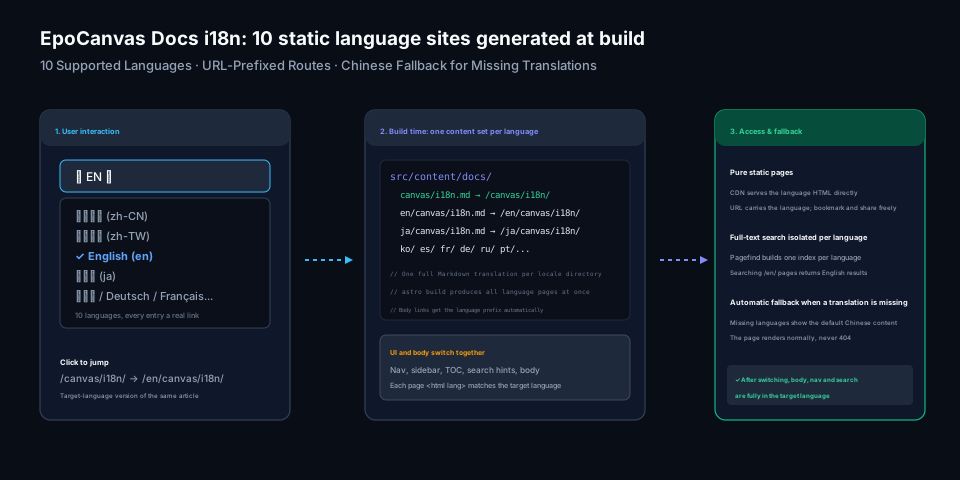
Figure: the flow of a language switch. At build time a full set of static pages is generated for each language; clicking the language button jumps to the same article in that language. When a page is missing a translation, it automatically falls back to Chinese.
URL Rules
Each language has its own URL prefix; the same article differs across languages only by that prefix:
/canvas/i18n/ → Simplified Chinese (default language, no prefix)/en/canvas/i18n/ → English/ja/canvas/i18n/ → Japanese/zh-tw/canvas/i18n/ → Traditional Chinese- The language is encoded directly in the URL, so a switched page can be bookmarked and shared as-is, and search engines can index each language separately;
- Internal links that appear on a page (navigation, sidebar, recommended links in the body) automatically carry the current language prefix, so readers who keep reading within one language are never bounced back to a Chinese page;
- Every language version is an independent static page generated at build time, and the page’s
<html lang>attribute matches the language, so screen readers and translation tools can identify it correctly.
What Happens When a Translation Is Missing
Missing translations are handled with a “default language fallback” strategy: if a document does not yet have a translation for some language, visiting that language’s page shows the default Simplified Chinese content, while the rest of the page (navigation, sidebar, UI text) stays in the target language. No 404 error and no blank page.
The benefit of this strategy: when adding a new document, you do not need to wait until translations in all languages are ready. Publish the Chinese version first, then rebuild once the translations are filled in.
How It Works
The multilingual capability is carried by the internationalization mechanisms of Astro and Starlight. The build process works as follows:
- Content directories are split by language: documents in the default language live in
src/content/docs/(Simplified Chinese), and other languages live undersrc/content/docs/<language>/with a directory structure that mirrors the Chinese one exactly. For example, the English edition of “Multilingual Support & Language Switching” issrc/content/docs/en/canvas/i18n.md; - All language pages are generated at build time:
astro buildreads thelocalesconfiguration inastro.config.mjsand produces a complete set of static pages for each language; - UI strings are rendered per language: header navigation, search hints, table-of-contents titles, and other UI text are output in the target language at build time by components calling
getTranslation(key, lang); there is no runtime replacement script on the page; - Internal body links are localized automatically: the
rehypeLocalizeInternalLinksplugin in the build pipeline automatically adds the current language prefix to/canvas/xxxinternal links inside translated body text; - Full-text search is isolated per language: Pagefind builds a separate index for each language, so searching on an English page returns only English results.
- Body images fall back per language: the
rehypeLocalizeDiagramImagesplugin rewrites/images/canvas/<file>in translated text to/images/canvas/<lang>/<file>, with the localized files kept underpublic/images/canvas/<lang>/; when no file with the same name exists the original is left in place, so a new image does not have to be produced in all 10 languages at once; - Asides and footnotes follow the page language:
rehypeLocalizeAsidesandrehypeLocalizeFootnotesrewrite aside titles and footnote labels from the language directory of the source file — Starlight infers the language from an absolute path during remark, while a local build passes a relative path, so without this every label would fall back to Chinese; - hreflang and the 404 page: after the build,
hreflangXDefault()adds onehreflang="x-default"link per page pointing at the Simplified Chinese version, andsrc/pages/404.astroreuses the same dictionary to render its message in the browser language, with the language menu linking to each language’s home page.
For Developers: How to Add a Language
Taking Italian (Italiano, code it) as an example:
- Register the language route: add
it: { label: 'Italiano', lang: 'it' }tolocalesinastro.config.mjs; - Add sidebar text: in the same file, add
ittranslations for all groups and entries inSIDEBAR_I18N; - Add UI strings: register the language (code, name, abbreviation, URL prefix) in
SUPPORTED_LANGUAGESinsrc/utils/i18n.ts, and add the language’s UI strings inUI_TRANSLATIONS; - Translate the document content: create the
src/content/docs/it/directory and put translations there following the Chinese directory structure. Untranslated pages fall back to Chinese for now and can be filled in gradually; To localize screenshots and diagrams, add apublic/images/canvas/it/directory with files of the same name — pages pick them up automatically. - Rebuild: run
pnpm run build, and the new language’s pages and search index are generated. After building, runnode scripts/audit-i18n.mjsandnode scripts/check-localized-images.mjsto re-check translation structure and image references; both are required checks in CI.
For Developers: How to Add or Modify UI Strings
When adding a new UI element, add its strings to UI_TRANSLATIONS in src/utils/i18n.ts:
// The dictionary is organized in two levels, "language → string key", matching the lookup order of getTranslationexport const UI_TRANSLATIONS: Record<string, Record<string, string>> = { // Step 1: add the string under the default language zh-CN (if missing, the UI falls back to showing the key name) 'zh-CN': { 'nav.plugins': '插件生态', // ...other existing strings }, // Step 2: add translations under the same key for other languages; languages without one fall back to Chinese en: { 'nav.plugins': 'Plugins', }, ja: { 'nav.plugins': 'プラグイン', },};Then call getTranslation in the component, passing in the current language:
---import { getLangFromLocale, getTranslation } from '../../utils/i18n';const lang = getLangFromLocale(Astro.currentLocale);---
<a href={localizedHref('/plugins/', lang)}>{getTranslation('nav.plugins', lang)}</a>
Strings are rendered at build time as static text in the target language, with no runtime overhead.