
Full-Text Search & Keyboard Shortcuts
When working through large amounts of technical documentation, quickly finding the configuration option or parameter you need matters. EpoCanvas Docs has a built-in dual-mode search: the header search box locates text within the current page, while the Ctrl+K dialog searches all documentation across the site. Both modes run entirely in the browser, require no backend service, and work even when the site is hosted on an intranet without internet access.
Which Search Mode to Use When
| Scenario | Mode | How |
|---|---|---|
| You remember the text is in the current article | In-page search | Click the search box in the header and type keywords |
| You are not sure which article has the content and need a site-wide search | Site-wide search | Press Ctrl + K (Cmd + K on Mac) |
In-Page Search: the Header Search Box
Click the search box in the middle of the page header (magnifier icon) and type keywords directly:
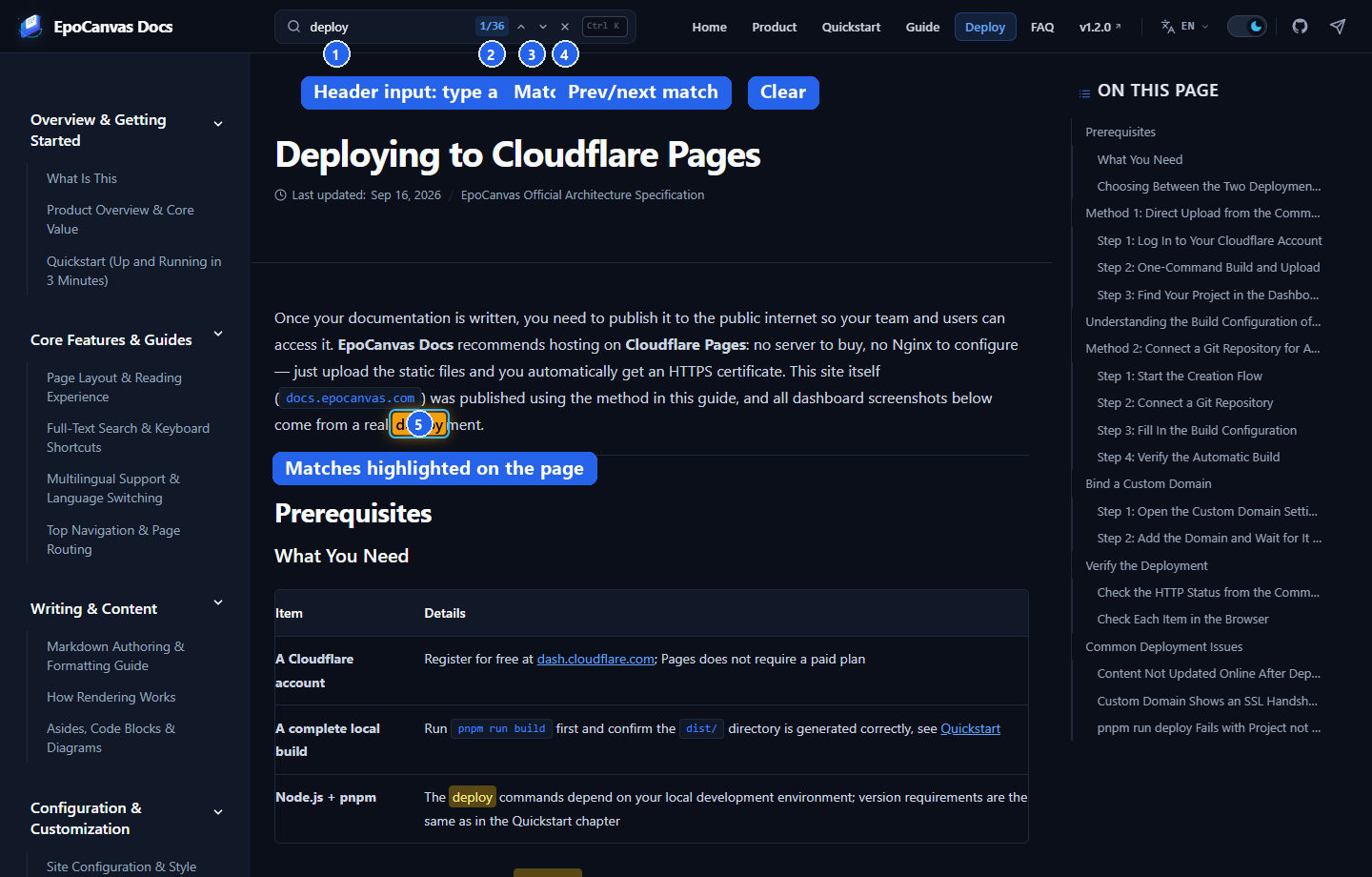
Figure: what the header search box looks like after typing “部署” (“deploy”). (1) Header input box; (2) match counter (e.g. 1/26); (3) previous / next navigation buttons; (4) clear button; (5) all matching text on the current page is highlighted automatically.
Enter Keywords
Supports English phrases (such as “deployment”, “components”), Chinese words, and code snippets (such as pnpm, astro.config.mjs). While you type, all matching text on the current page is immediately highlighted and the page scrolls to the first match.
Jump Between Matches
- Press Enter or click the down arrow: jump to the next match;
- Press Shift + Enter or click the up arrow: return to the previous match;
- The search box shows a live
N/Mprogress counter (e.g.3/9), so you always know where you are.
Clear the Search and Restore the Page
Press Esc or click the × button to remove all highlights and restore the page.
Site-Wide Search: the Ctrl+K Dialog
No matter which page you are on, press Ctrl + K (Cmd + K on Mac), or click the Ctrl K badge on the right of the search box, and a global search window opens in the middle of the screen:
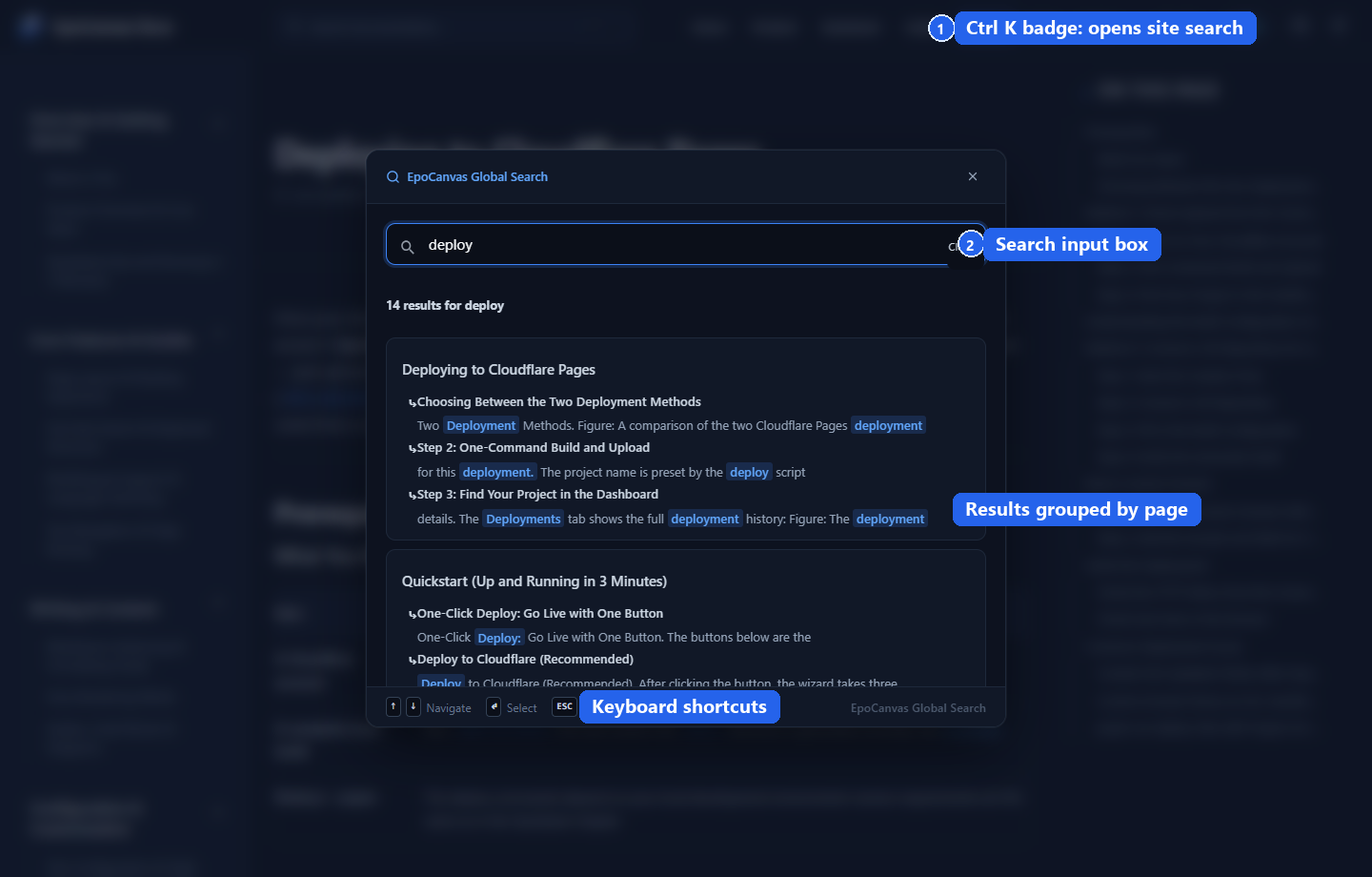
Figure: what the dialog looks like after typing “部署” (“deploy”). (1) The Ctrl K badge next to the search box (clicking it also opens the dialog); (2) search input box; (3) results grouped by document, with matching keywords highlighted; (4) keyboard shortcut hints at the bottom.
Enter Keywords
Supports English phrases (such as “deployment”, “components”), Chinese words, and code snippets (such as pnpm, astro.config.mjs). Results whose titles match are listed first.
Browse the Results List
Results are grouped by document. Each entry shows the document title, the section it belongs to, and a context preview containing the keywords, with matching words highlighted. Click a group title to expand or collapse the matching paragraphs for that document.
Complete the Whole Flow with the Keyboard
- ↑ ↓: move the selection between results;
- Enter: open the selected result and jump to the matching paragraph;
- Esc: close the dialog.
No mouse required at any point.
Why Is the Search So Fast?
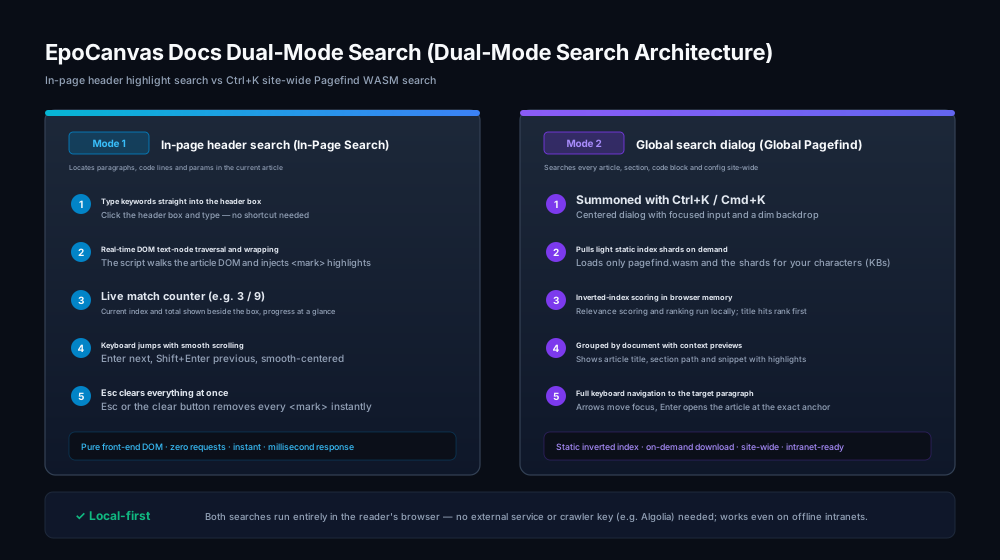
Figure: how the two search modes work. Left: fast keyword location within the current page via the header. Right: site-wide search over a static index built on Pagefind WASM. Both run entirely in the browser.
Documentation search on many websites sends requests to a remote server’s database, and on a poor connection you just watch a spinner.
EpoCanvas Docs uses Pagefind, a local static search solution:
- Index extracted at build time: when you run
pnpm run build, the system reads the content of every document and produces a set of compressed static index chunk files. - Lightweight on-demand downloads: when you type in the search box, the browser fetches only the index chunks for the characters entered (each just a few KB to a few dozen KB).
- Instant local matching: matching and ranking happen entirely in the browser, so there is no network latency, and search works fully even on an intranet with no internet access.
Search Tips
- Split into words: for more precise results, enter several words separated by spaces (for example
Cloudflare domain). - Titles rank first: document titles and section headings carry the highest weight in ranking, so results with keyword hits in the title come first.
- Dev mode limitation: the site-wide index is only generated at build time, and in the dev server started with
pnpm run devtheCtrl+Kdialog does not load the index, so site-wide search is unavailable there. To try the search, runpnpm run buildand thenpnpm run previewto view the built site. In-page search is not affected.